.png)
Receiving With Lot and Expiration Tracking
- Go to shipping.shiphero.com > Purchase Orders and select the PO you would like to receive.
- When viewing your POs, you will see the option to Edit Lot for SKUs that have Lot and Expiration Tracking enabled:
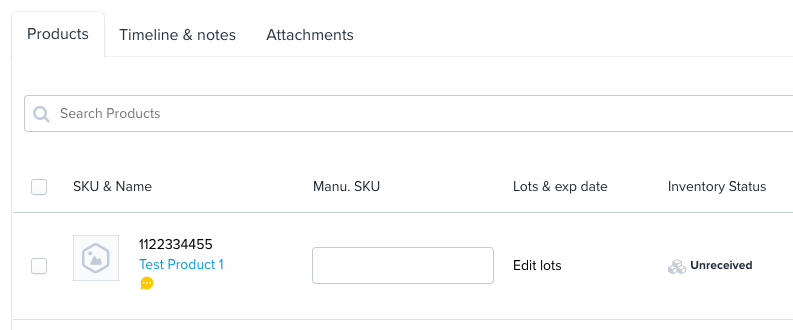
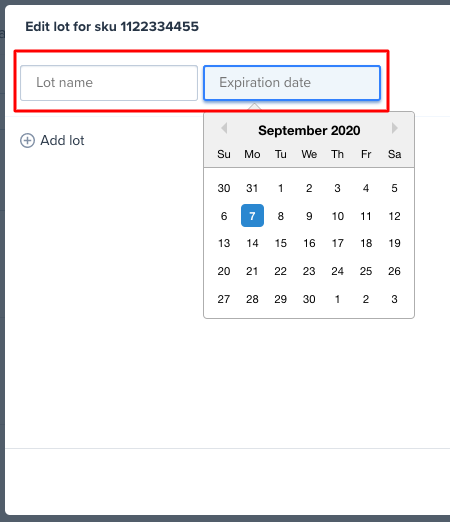
- Click on Edit lots and choose the Lot name and expiration date.
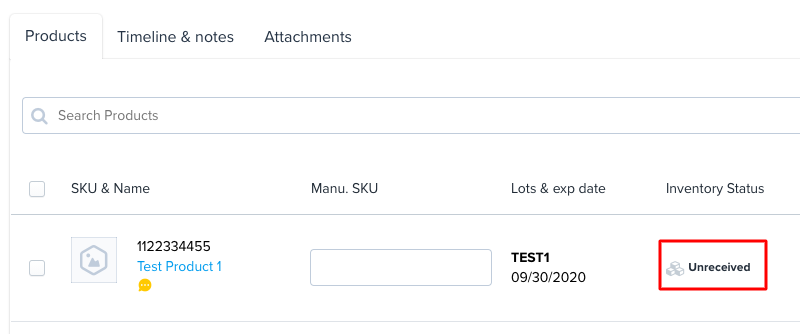
- Click on Unreceived under the Inventory Status column:
- Click on Accepted:

- Indicate how many items you are accepting for each Lot and Expiration date:
Note: You cannot have one location for two different lot codes or expiration dates. This is a restriction to prevent errors in picking.
Tracking for Lots and Expiration
- Go to app.shiphero.com > Inventory > Product Locations
- Search for the SKU that you want to track or filter by Lot Expiration